
Before you start
- The widgets work in Jira Cloud, in the new dashboards. They do not appear in classic dashboards.
- A Jira administrator installs the app from the Atlassian Marketplace. After that, everyone who can edit a dashboard can add the widgets.
- The app asks for one permission: to read work items. It never changes anything in Jira.
Add a widget
- Open a dashboard, or create a new one.
- Switch the dashboard to edit mode and choose Add widget.
- In the panel that opens, look for the widgets marked “By Tidy Widgets”: Work item list (JQL), Count tiles (JQL) and Two-way statistics (JQL).
- Choose one. Its settings open, with a live preview beside them.
- Fill in the settings. A note at the top, “Still needed”, says what is missing.
- Choose Add.
To change a widget later, switch the dashboard to edit mode and open the widget’s settings.
Write the search
Every widget needs a search, written in JQL: the Jira Query Language, the language of Jira’s own advanced search. There are two ways to give a widget its search.
Pick a saved filter
The list Saved filter shows the filters you can see in Jira (the first 100, by name). When you pick one, the search box shows it as filter = 10001: the word “filter” and the filter’s number. The widget uses the filter as it is at that moment, so when you change the filter in Jira, the widget follows.
Write JQL
Any search that works in Jira works here:
project = SHOP AND statusCategory != Done ORDER BY priority DESCYou can also start from a saved filter and narrow it:
filter = 10001 AND assignee = currentUser()Test search tells you how many work items the search finds (“Matches about 43 work items.”), or shows Jira’s own message when the search has a mistake.
Three things to know
- Jira needs at least one condition. A search that is only
ORDER BY createdis refused. - The order of a list comes from the
ORDER BYof its search. - A search runs with the permissions of the person who is looking at the dashboard. People with different access can see different rows and numbers in the same widget, exactly as in Jira’s own search. If a widget uses a saved filter, share that filter with everyone who views the dashboard.
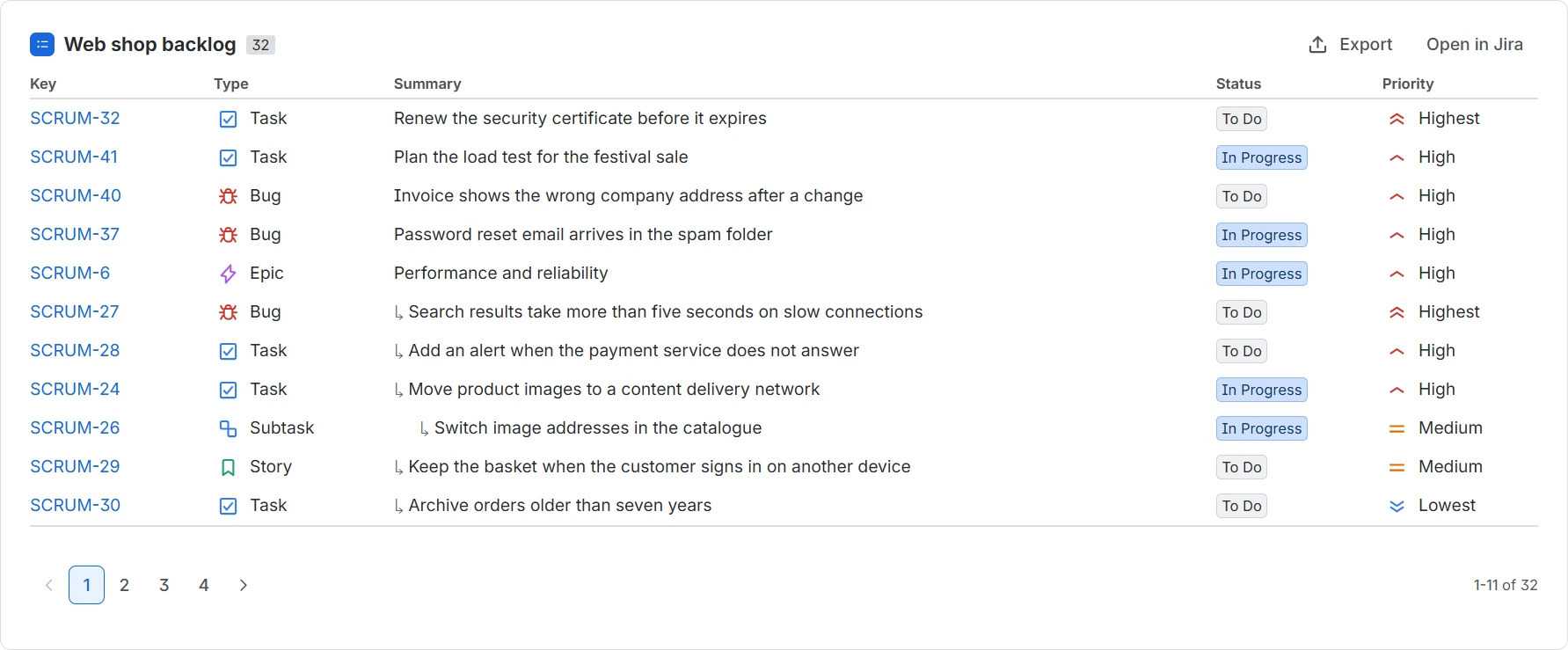
 Work item list
The work items of a search as a table, with the columns you choose, page numbers, and a line that says which rows you are looking at (“11-20 of 43”).
| Setting | What it does |
|---|---|
| Title (optional) | Shown at the top of the widget. Without a title the widget says “Work items”. |
| Search (JQL) | Which work items to list, and in which order. |
| Columns | Key, Summary, Type, Status, Priority, Assignee, Reporter, the dates, Labels, Components, Fix versions, Parent, Space, the time fields, and every custom field of your site. Columns appear in the order you pick them. A new list starts with Key, Summary and Status. |
| Show Jira’s preview of each work item | Rest the mouse on a key and Jira shows its own preview of the work item. Switched on in a new list; needs the Key column. |
| Rows per page | 5, 10, 20 or 50. |
| Read at most | 50, 100, 200 or 500 work items. If the search finds more, a note under the list says so. |
| Show child work items under their parent | Puts sub-tasks under their task and stories under their epic, when both are in the search result. A child always stays on the page of its parent, so a page can be a little longer than the rows you chose. |
| Refresh | See Refresh. |
In the widget
- The number beside the title is how many work items the search finds.
- A click on a key opens its work item: in the same tab while Jira’s preview is switched on, in a new tab while it is off.
- Open in Jira opens the same search in Jira’s own list.
- Export gives you the list as a file. See Export.
- When the widget is too narrow for its columns, a scroll bar appears under the table. Make the widget wider, or choose fewer columns.
Jira’s preview of a work item
Rest the mouse on a key for a moment and Jira shows its preview card of the work item, with the summary, the status and the person it is assigned to. From the card you can open the work item or copy its link. The card is Jira’s own: what you can do in it depends on your permissions in Jira.
The preview is ready a moment after the list, because Jira looks up each work item for it. If you do not want it, switch off Show Jira’s preview of each work item in the settings.
If you move through the list with the keyboard or use a screen reader: with the preview switched on, each key is reached twice, once for the key and once for Jira’s preview. Switching the preview off avoids that.
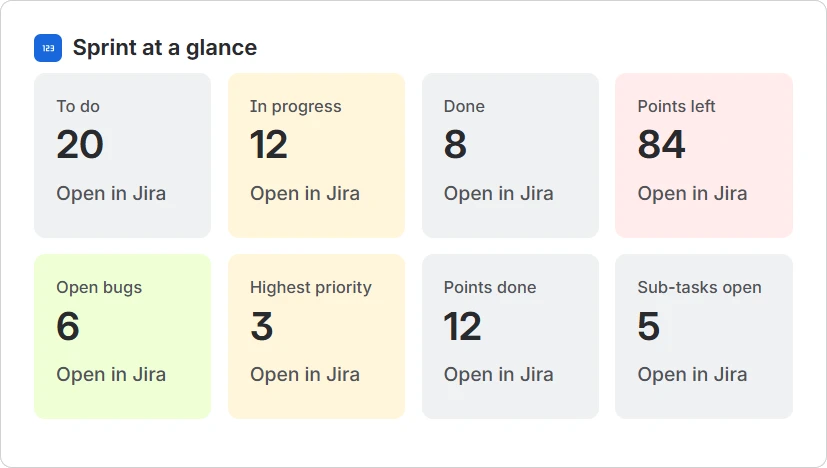
 Count tiles
Big numbers, each from its own search. One widget holds up to 8 tiles.
| Setting of a tile | What it does |
|---|---|
| Label | The text above the number. |
| Search (JQL) | What to count. |
| Number to show | “Number of work items”, or the total of a number field: story points or any other number field of your site, or Time spent, Original estimate and Remaining estimate in hours. |
| Orange from, Red from | Optional limits. The tile turns orange when its number reaches the first limit and red when it reaches the second. Below the limits it is green. Leave both empty for a plain tile. |
- Open in Jira on a tile opens that tile’s search in Jira.
- A total adds up at most 1,000 work items. If the search finds more, the tile says so.
- The widget’s own title is optional. Without one it says “Counts”.
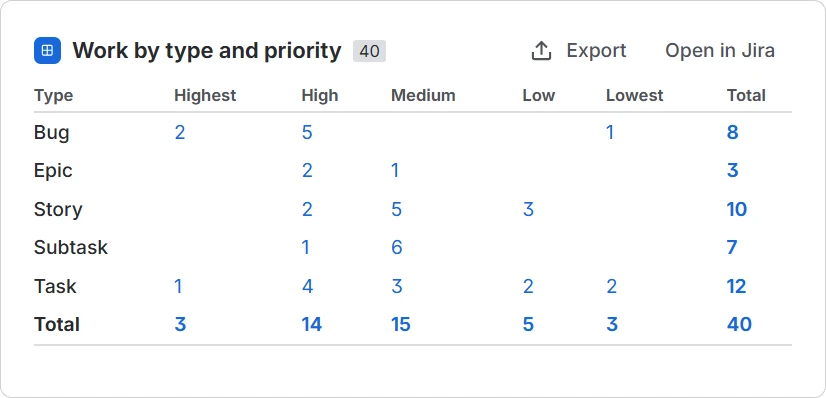
 Two-way statistics
A table that counts work items by two fields at once, one down the side and one across the top, with totals. For example: status by assignee, or priority by work type.
| Setting | What it does |
|---|---|
| Title (optional) | Without a title the widget names its two fields, for example “Status by Assignee”. |
| Search (JQL) | Which work items to count. |
| Rows, Columns | The two fields: Status, Type, Priority, Assignee, Reporter, Space, Resolution, Labels, Components, Fix versions, Parent, and the custom fields of your site that hold a choice, a person, a team, a version or a sprint. They must be two different fields. |
| Number in each cell | “Number of work items”, or the total of a number field or of a time field (in hours). |
| Order of rows and columns | “Jira’s order”: statuses from to do to done, priorities from the most urgent, every other field by name. Or “Largest total first”. |
| Read at most | 500, 1,000 or 2,000 work items. If the search finds more, a note under the table says so. |
| Refresh | See Refresh. |
- Click a number to open the work items behind it in Jira. (For a few kinds of field, two-level select lists for example, Jira cannot be asked for a single value. Those numbers are shown without a link.)
- A work item with several values, two labels for example, is counted under each of them, and once in the totals.
- Work items without a value are counted under “None”, or under “Unassigned” for the assignee.
- A table shows up to 40 columns. If a field has more values than that, the widget asks you to swap rows and columns or to pick another field.
Export
The work item list and the two-way statistics have an Export button. It opens a window with two choices: Download CSV saves a file that opens in Excel, Google Sheets and other spreadsheets, and under it the same rows are shown as text, ready to copy and paste.
- A list is exported with every work item that was read, not only the page on the screen, and with the columns of the widget.
- A two-way table is exported with its totals.
- The file is made in your browser. Nothing is sent anywhere.
- Text that begins with
=,+,-or@gets an apostrophe in front of it, so that a spreadsheet does not run it as a formula.
Refresh
A widget asks Jira for its data when the dashboard is opened. For a dashboard that stays open, on a wall screen for example, the setting Refresh lets a widget ask again every 5, 15 or 30 minutes, or every hour. While it asks, the earlier content stays on the screen. If a refresh fails, the widget keeps the earlier content and says so.
Good to know
- The filter bar at the top of a dashboard does not change these widgets. Each widget uses the search in its own settings.
- Priority and work type are shown with Jira’s icons when they have Jira’s standard English names. Other names are shown as text.
- Limits: a list reads up to 500 work items, a tile adds up at most 1,000, and a two-way table reads up to 2,000 and shows up to 40 columns. One tiles widget holds up to 8 tiles.
- The app has no server of its own. Your work items go from your Jira site to your browser and nowhere else. See the privacy policy.
When something looks wrong
| What you see | What to do |
|---|---|
| A widget stays empty or gray and never loads | Your network may be blocking the address from which Atlassian delivers Marketplace apps to the browser, forge.cdn.prod.atlassian-dev.net. That stops every app built on Atlassian’s Forge platform, not only this one. Ask your network administrator to allow the address, or switch on secure DNS in your browser. |
| “Set up this widget” | The widget has no search yet. Open its settings and enter one. |
| “Still needed” or “Not saved yet” in the settings | The note lists what is missing, a search for example. Fill it in and save again. |
| “This search could not be run” | Jira refused the search, and its own message is shown. Paste the search into Jira’s search page to find the mistake. A common cause is a saved filter that is not shared with the person who is looking. |
| “Showing the first 100 …” | The search finds more work items than the widget reads. Narrow the search, or raise Read at most in the settings. |
| “Too many columns to show” | Swap rows and columns in the settings, or choose a field with fewer values. |
| “License needed” | The app’s trial or subscription is not active on your site. A Jira administrator can check it under Apps, Manage apps. |
| “This widget hit a problem” | Reload the page. If the message comes back, send us the text shown in the box. |
Contact
Questions, problems and wishes: use the contact form, or write to support@tidywidgets.com. Please tell us which widget it is about, what you expected and what you see. A screenshot helps; work items in it may be blurred.